You can connect sharepa to Claude or ChatGPT. Then you say “publish this with sharepa” in the chat, and your page is live. No copying, no pasting. Connecting takes a minute, and you only do it once.
The pictures show the German interface. The English menu names are in the text.
Connect in Claude · Connect in ChatGPT · Connect in your code editor
The address you need everywhere:
https://app.getsharepa.ch/mcp
Connect in Claude
Works on every Claude plan, including free. The free plan allows one custom connector. Set it up on claude.ai or in Claude Desktop, afterwards it is also available in the Claude app on your phone.
The button opens Claude with the dialog already filled in. Claude points out that the connector was suggested by an external link — that is normal, the name and address are shown above so you can check them. Then tap Continue (Weiter).
Connect and allow
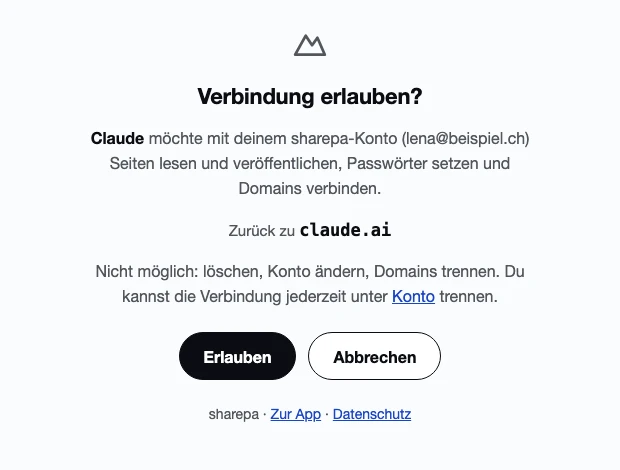
sharepa is now in the list. Tap Connect (Verbinden). sharepa opens: sign in with your email if you are not signed in yet, and tap Allow (Erlauben). The window closes and you are back in Claude.
Try it in the chat
New chat, then for example:
Hi Claude, build a link-in-bio page for me and publish it with sharepa.
The first time, Claude asks whether it may use sharepa. Then you get the link to your page.
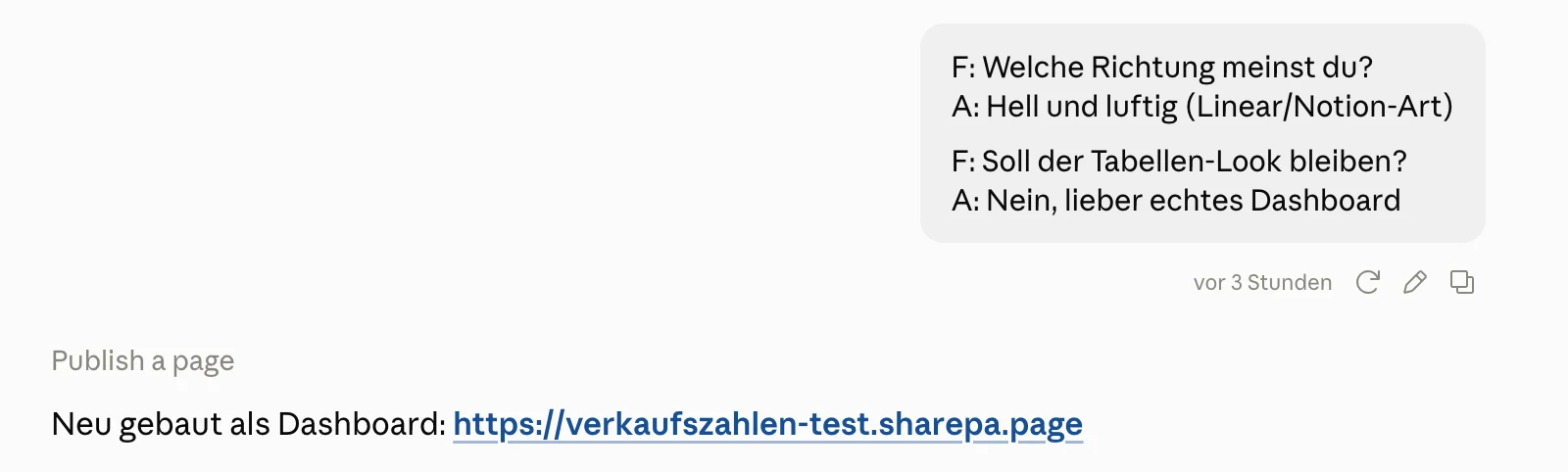
If Claude does not pick sharepa, tap + at the bottom of the chat, then Connectors, and switch sharepa on.
Button not working? Add it by hand
Only for that case. If the button worked, skip this.
The button uses a Claude shortcut that is not in their documentation. Should it stop working one day, the manual way still works:
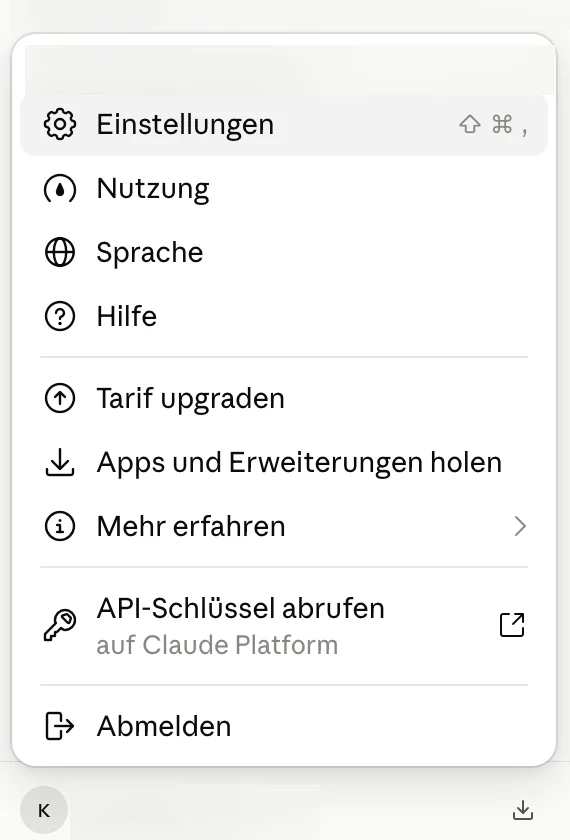
- Tap your name at the bottom left, then Settings.
- On the left under “Customize”, choose Connectors, then Add (Hinzufügen) at the top right and Add custom connector.
- Name
sharepa, addresshttps://app.getsharepa.ch/mcp, then Continue (Weiter).
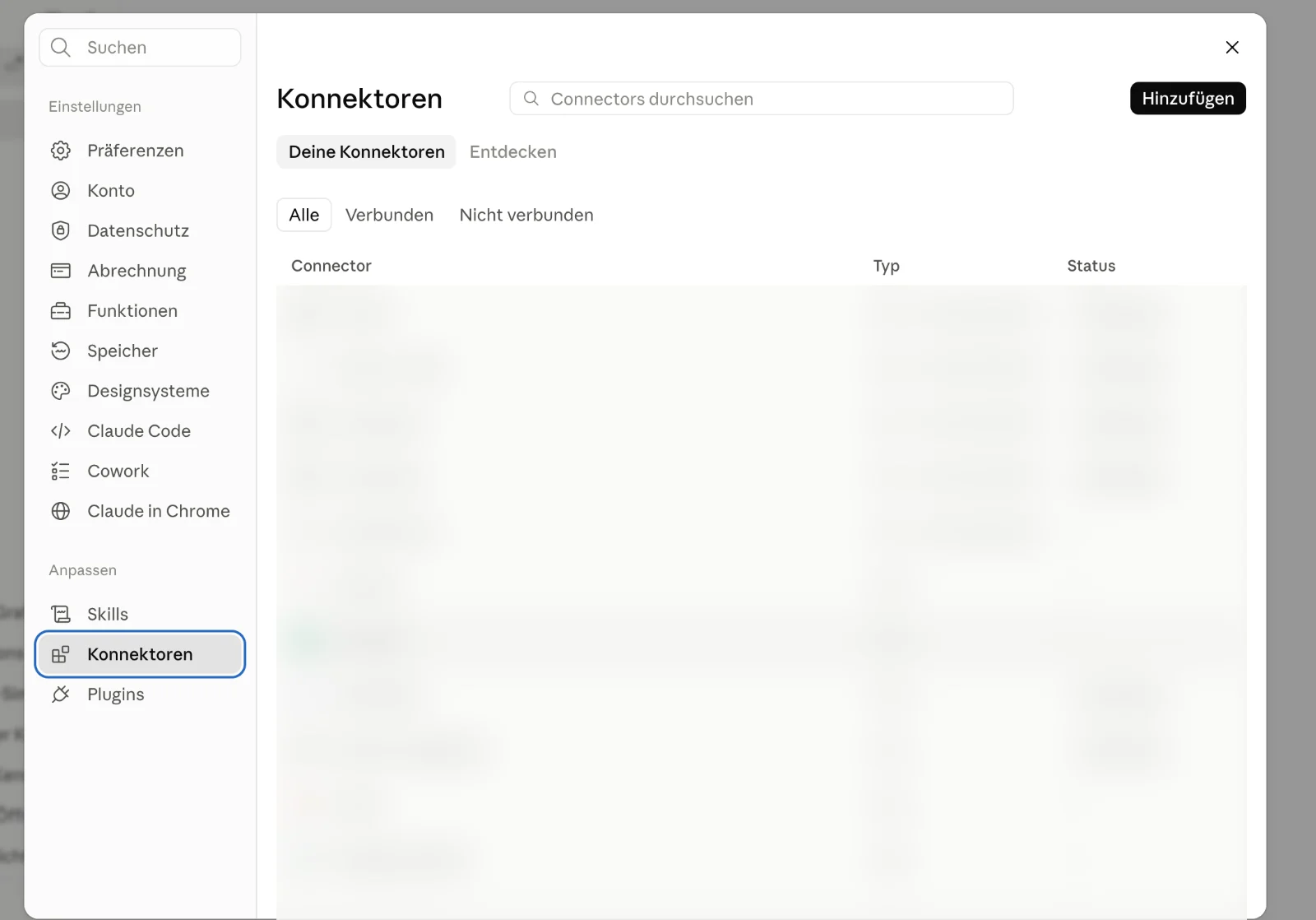
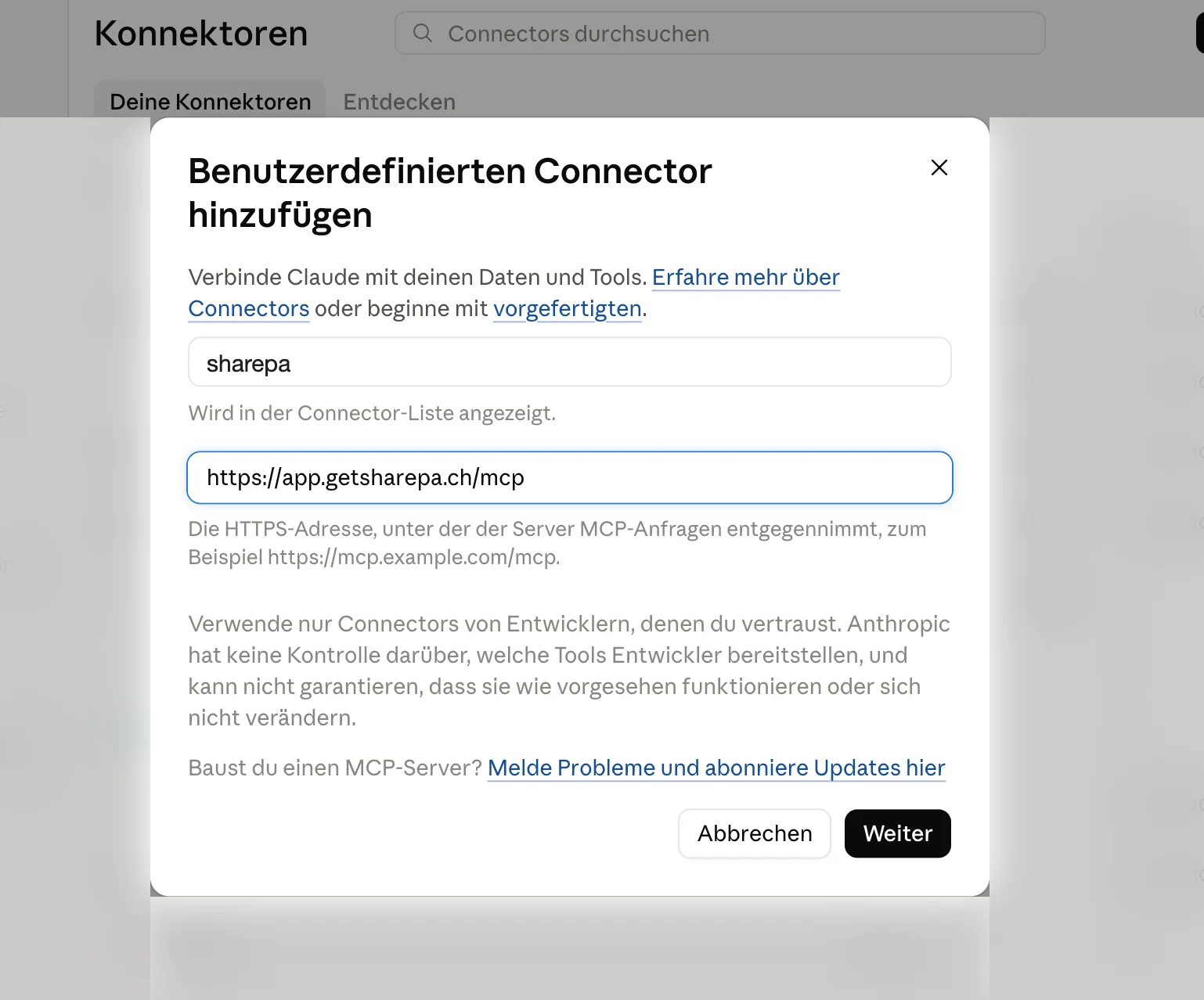
From here on it is the same as with the button: continue above at Connect and allow.
Connect in ChatGPT
Works in the browser on chatgpt.com, in our test also with a free account. Custom connectors in ChatGPT run through Developer mode, a beta by OpenAI; if you do not see the switch, it is not yet available for your account.
Unlike Claude, ChatGPT cannot pre-fill the fields. These two buttons do take you straight to the right place:
1. Turn on developer mode2. Create the plugin
1. Turn on developer mode
The first button opens Security and login. Further down, switch on Developer mode.
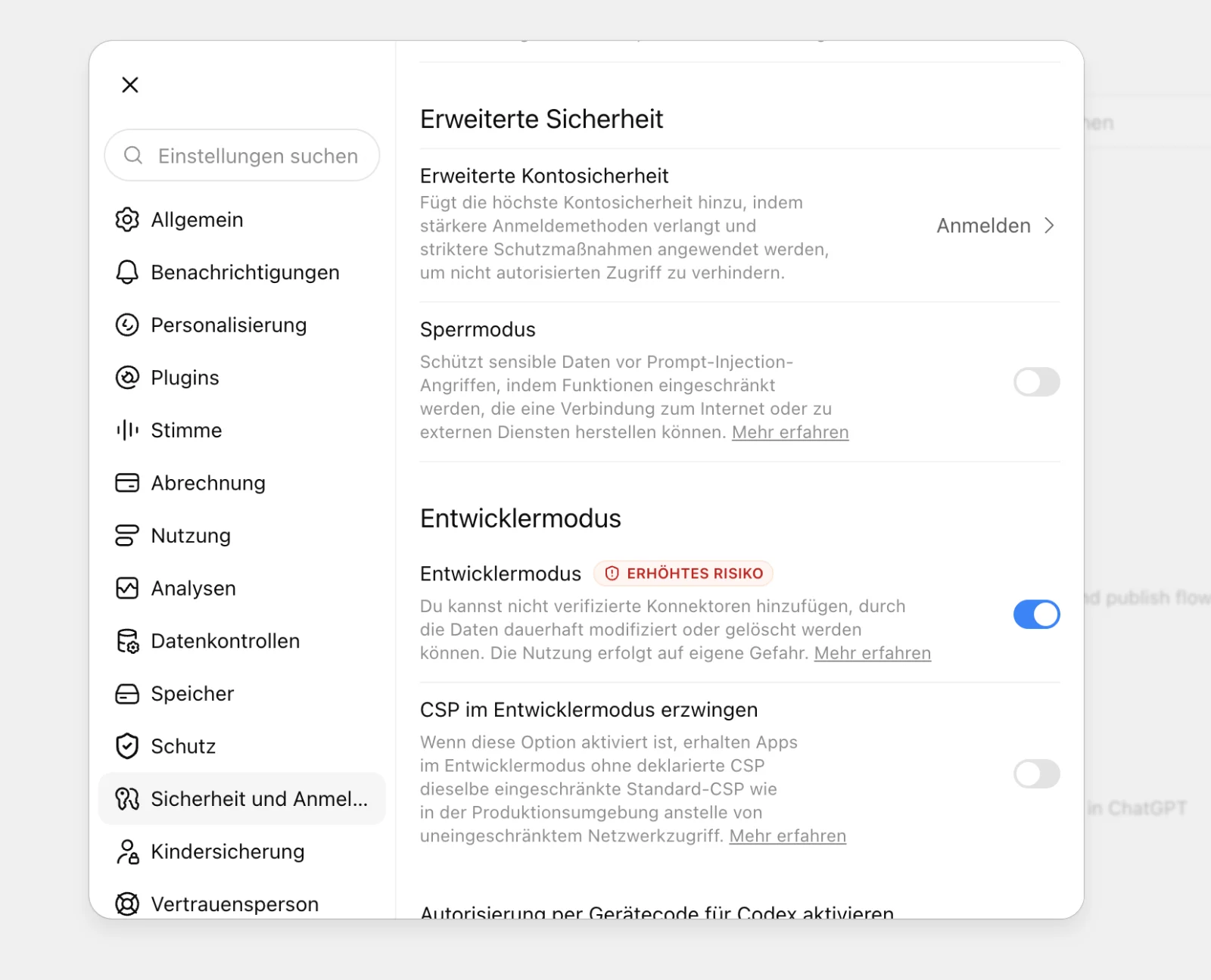
2. Create the plugin
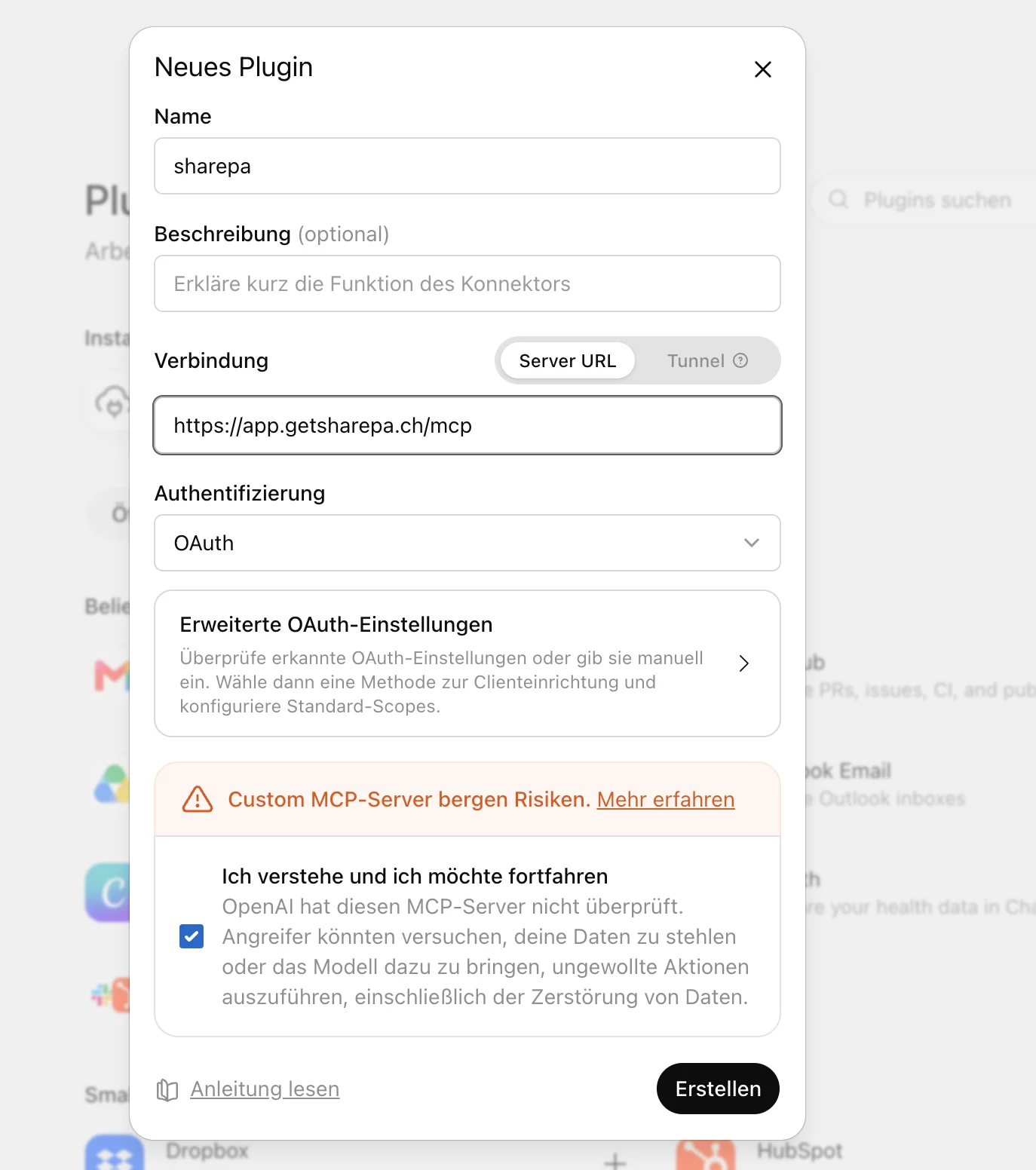
The second button opens the “New plugin” (Neues Plugin) dialog — on some accounts it is called “New app”. Fill it in like this:
- Name:
sharepa - Connection: Server URL, address
https://app.getsharepa.ch/mcp - Authentication: OAuth
- Tick the risk notice (“Ich verstehe und ich möchte fortfahren”)
- Create (Erstellen)
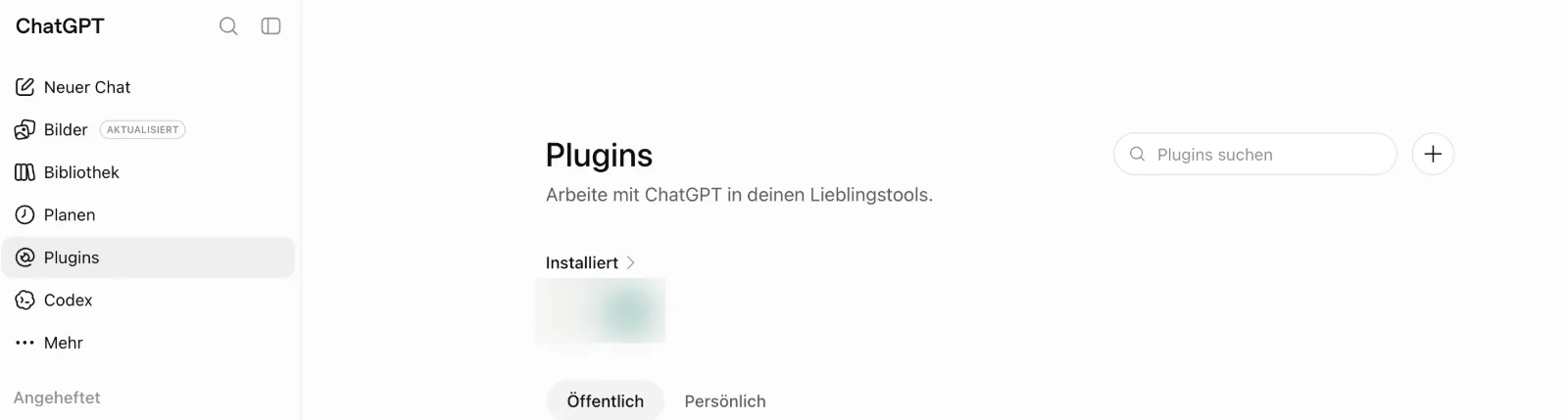
Without the buttons you find both like this: tap your name at the bottom left, Settings, Security and login for developer mode; then choose Plugins in the sidebar on the left and + at the top right.
3. Sign in and allow
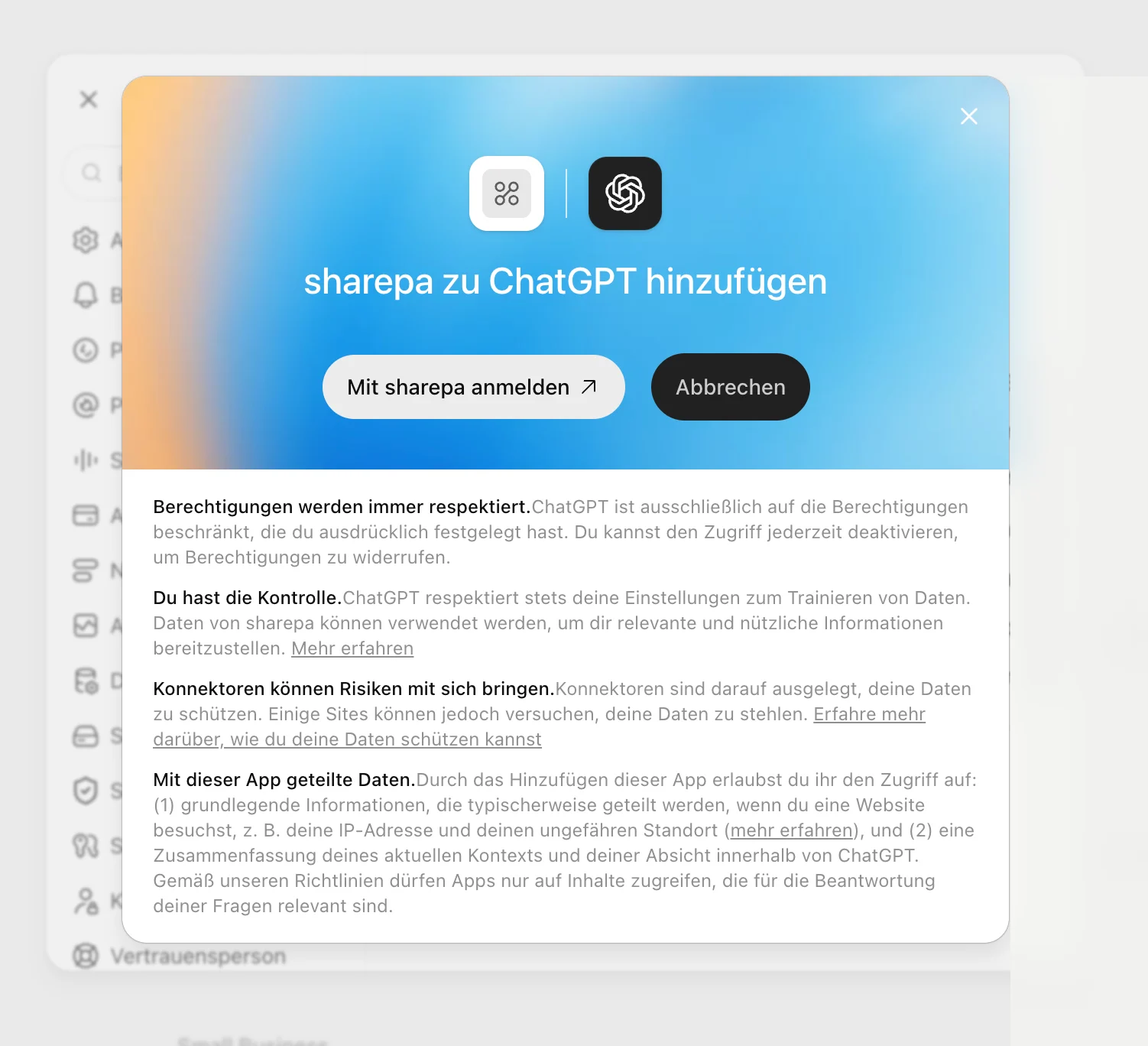
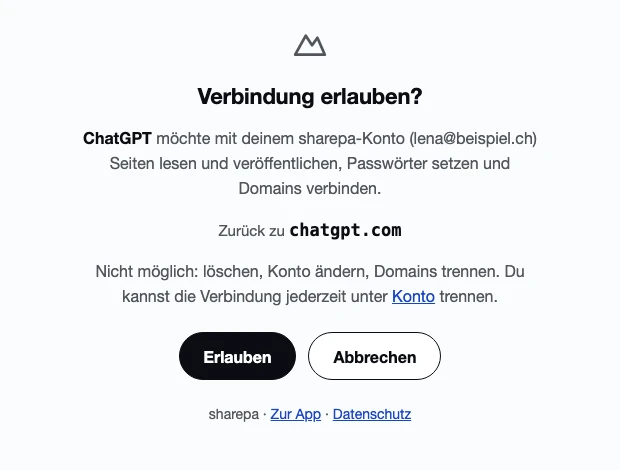
ChatGPT asks to add sharepa. Tap Sign in with sharepa (Mit sharepa anmelden), sign in and tap Allow (Erlauben).
4. Try it in the chat
New chat, pick sharepa via +. It shows up in blue in the input field. Then for example:
Build a link-in-bio page for me and publish it with sharepa.
ChatGPT asks every time before publishing whether it may. That is part of developer mode. Confirm, and you get the link.

The same works for everything else the connector can do, for example “How many visits did my page have yesterday?”.
Connect in your code editor
sharepa also works where you write code. In Claude Code one line in the terminal is enough:
claude mcp add --transport http --scope user sharepa https://app.getsharepa.ch/mcp
Then type /mcp in the chat, pick sharepa and choose Authenticate. Without --scope user the connector only applies to the current folder. More on this in the guide Publishing from Claude Code.
For the following programs one click is enough, they are connected right away:
Other programs that speak MCP take the address https://app.getsharepa.ch/mcp as a server of type “streamable HTTP”.
Large pages and pages with images
A page with embedded photos or a very long page does not fit into a single chat message. The chat then gives you an upload link. The link works for 15 minutes and only once.
- Download the page as a file. In Claude, open the artifact and choose ⋯ and Download. In ChatGPT, ask for the page as an HTML file and download it.
- Open the link from the chat and sign in if needed.
- Drop the file into the field and click Publish.
In Claude Code and other programs with access to your files, the chat uploads the file itself.
If it does not work
The chat does not use sharepa
Say “publish it with sharepa” explicitly. In Claude check via + and Connectors that sharepa is switched on. In ChatGPT pick sharepa via + before your sentence. Otherwise the chat sometimes builds the page only in the chat without publishing it.
Claude does not allow another connector
The free Claude plan allows only one custom connector. Remove another one or use copy and paste in the app.
You are on a team account
On Claude Team and Enterprise and on ChatGPT Business, someone with admin rights first adds the connector for the organization. Then you connect yourself as above.
The sign-in window does not open
Allow pop-ups for claude.ai or chatgpt.com and try again. If that does not help, disconnect under app.getsharepa.ch/einstellungen/apps and connect again.
What the connector can do
- List your pages and read their code.
- Publish pages and upload new versions.
- Set or remove a page password.
- Connect your own domain and show you the record you need.
- See the visit numbers of your pages.
New pages from the chat are open to anyone with the link and not in Google. You change both in the app, in the page settings.
Tip: In Claude and ChatGPT you can make the chat ask before every publish. Then nothing goes online without your consent.
If you want to change an existing page, name its address, for example “make the buttons on kochkurs blue”. It then becomes a new version, and the link stays the same.
What it cannot do
- Delete pages. That only works in the app.
- Read form entries. Only you see them, in the app.
- Disconnect a domain.
- Change your account or email, or delete the account.
That way a chat that goes off the rails cannot break anything you cannot restore yourself.
Passwords in the chat
A password you set in the chat is then in the chat history. If you share or export the chat, you share it too. Better set the password in the app, in the page view.
What it costs
Nothing. The connector is included in the free tier. The same limits apply as in the app: 3 pages, 1 page under your own domain. Plus 30 new versions per day, from the chat and the app together, and 500 requests per day for page lists and statistics. Normal use runs into none of this. If you need more, write to us.
Disconnecting
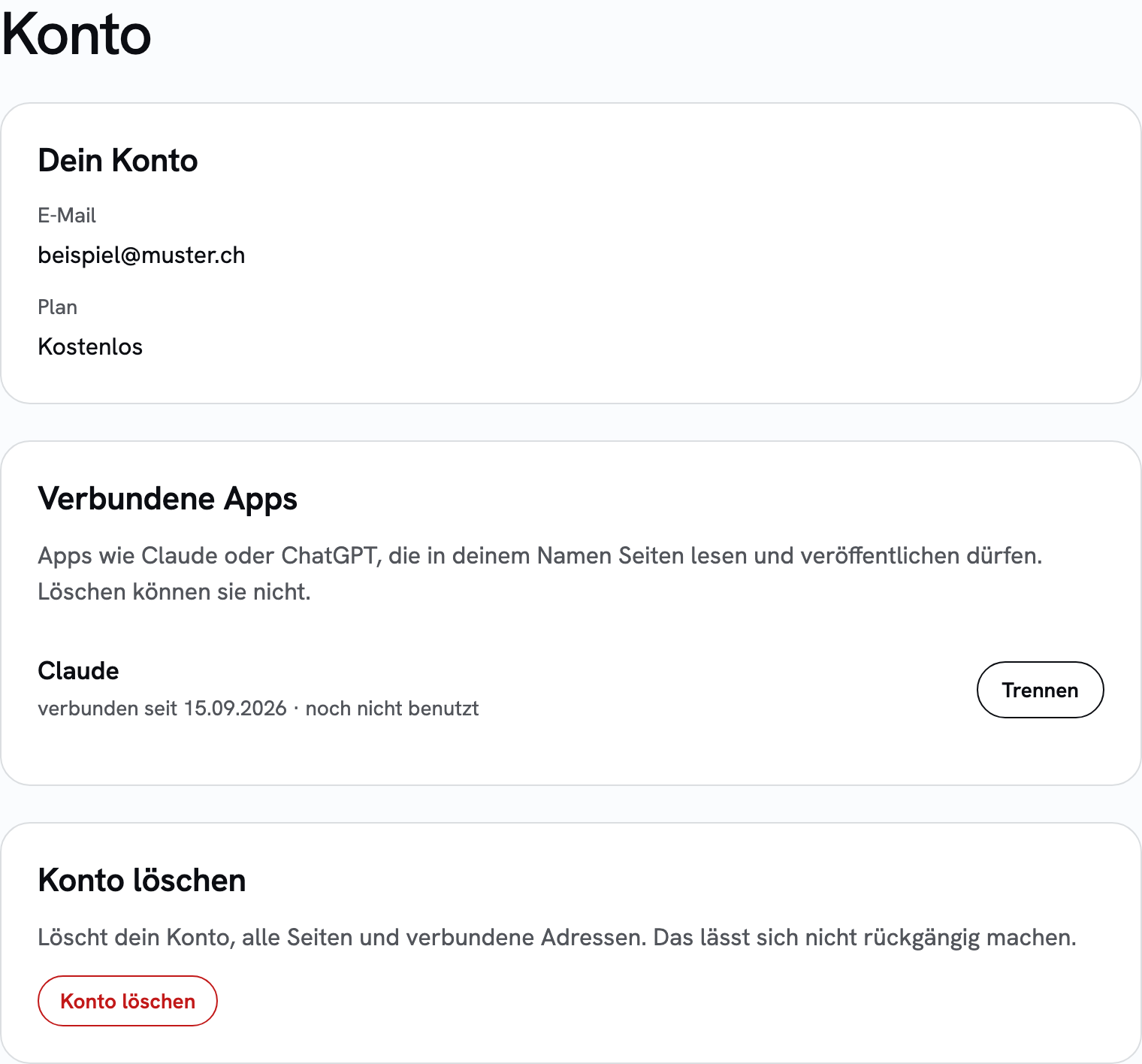
Your connected apps are listed under app.getsharepa.ch/einstellungen/apps. One click on “Disconnect” and the access is gone immediately. Your pages stay as they are.
Questions
Does the chat see my other pages?
Only those of your account, and only if you ask. The connector reads title, address, status and visit numbers. Other people's accounts are not visible to it.
Do I have to renew the permission?
No. The connection stays until you disconnect it under “Settings”. If you delete your account or it gets blocked, the access is gone immediately.
Menus in Claude and ChatGPT change now and then. If something no longer matches, let us know: konrad@getsharepa.ch